
Gusta Photo
An online photo editor that never invents a pixel
Gusta Photo makes your photo look like the moment did: exposure, light, color, curves and masks in a browser tab, on JPEG, HEIC and RAW files. Every edit is a recipe over your untouched original, and Gusta, the AI assistant, moves the same sliders you would and tells you why.
What Gusta Photo is
A photo editor for the photos that are almost right: a backlit portrait, a yellow living room, a sunset that came out gray, a crooked horizon. Open the file, fix the light and the color, export. There is nothing to install, no account is needed to edit or export, and nothing is stamped on your photo unless you add a watermark yourself.
Underneath, an edit is a short recipe rather than a new picture: exposure up a little, whites lifted, warmed by twelve. The file you opened is never written to. Every change, from a slider, a swipe or the assistant, goes through one editing layer, which is why undo always works and why the app can tell you exactly what happened to your photo.
Who it is for
People with a phone full of photos that each need a minute, who do not want to learn a professional suite and do not want an app that swaps their sky for someone else's. And photographers who shoot RAW, or enter contests with rules about editing, and want a capable editor in a browser tab, on a borrowed laptop or an iPad, without installing anything.
What is inside
Light and color
Exposure, contrast, highlights, shadows, whites and blacks; white balance with a picker; vibrance and saturation; texture, clarity and dehaze; sharpening and noise reduction; vignette and grain. A tone curve per channel, a color mixer for hue, saturation and luminance across eight color bands, point color for one exact shade, and color grading wheels for shadows, midtones and highlights. A histogram you can drag, a clipping view, and before, split and side by side compare. The fast GPU preview is tested against a reference renderer at full resolution, so what you see is what you export.
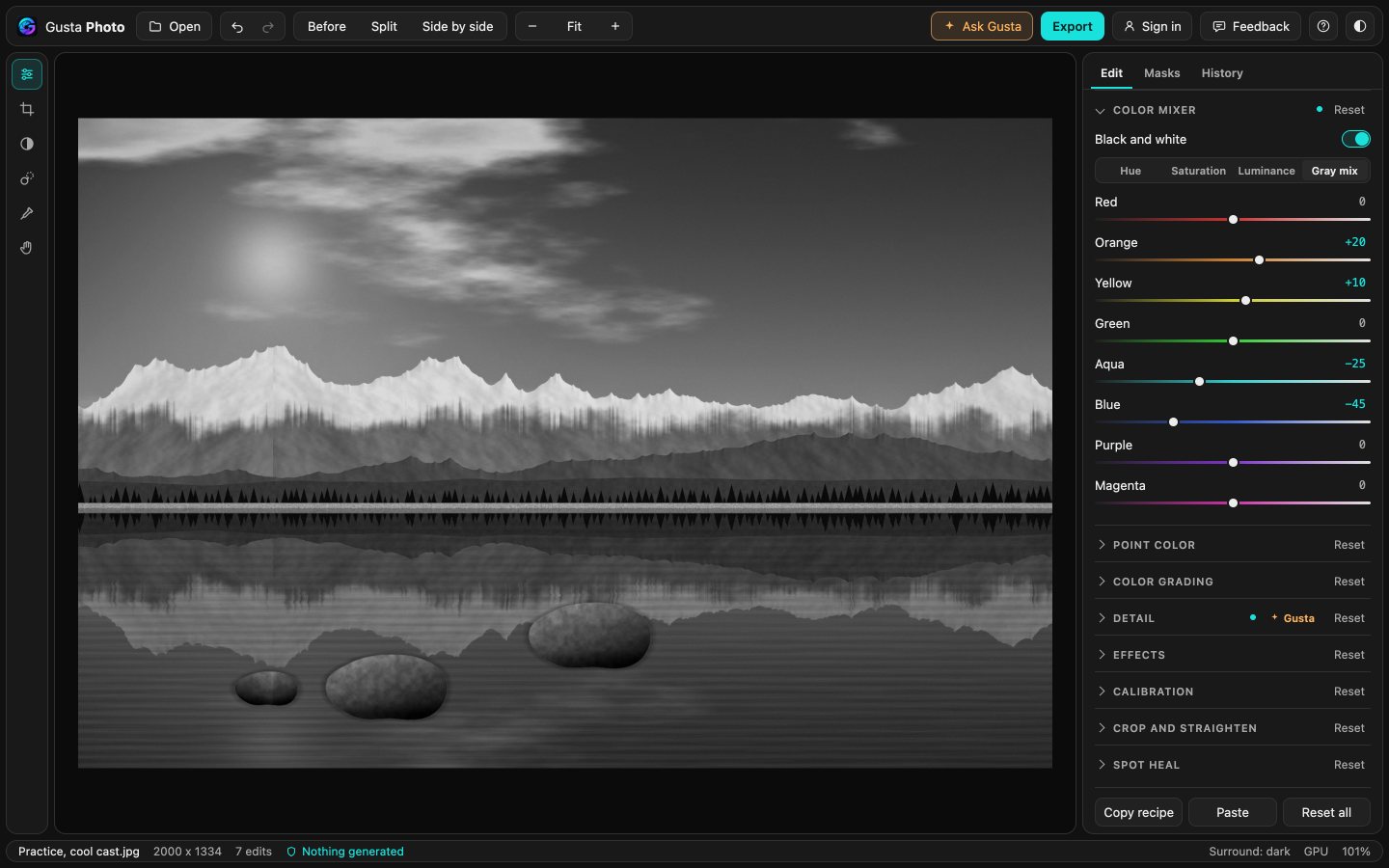
Black and white has its own gray mix, which sets how light each color turns: darken a blue sky, lift warm skin. Calibration shifts the hue and saturation of the primaries and tints the shadows, and defringe takes purple and green fringes off high-contrast edges.
Crop, straighten and upright
Crop with aspect presets for prints, Instagram and Stories, on a rotated frame that always stays inside the photo. Auto level measures the horizon and straightens it. Perspective correction stands up buildings that lean back: Auto upright measures it, or draw two to four lines along what should be vertical or horizontal with Guided upright, and the perspective follows them. It stays exact through any rotate or flip.
Masks, including selections made on your device
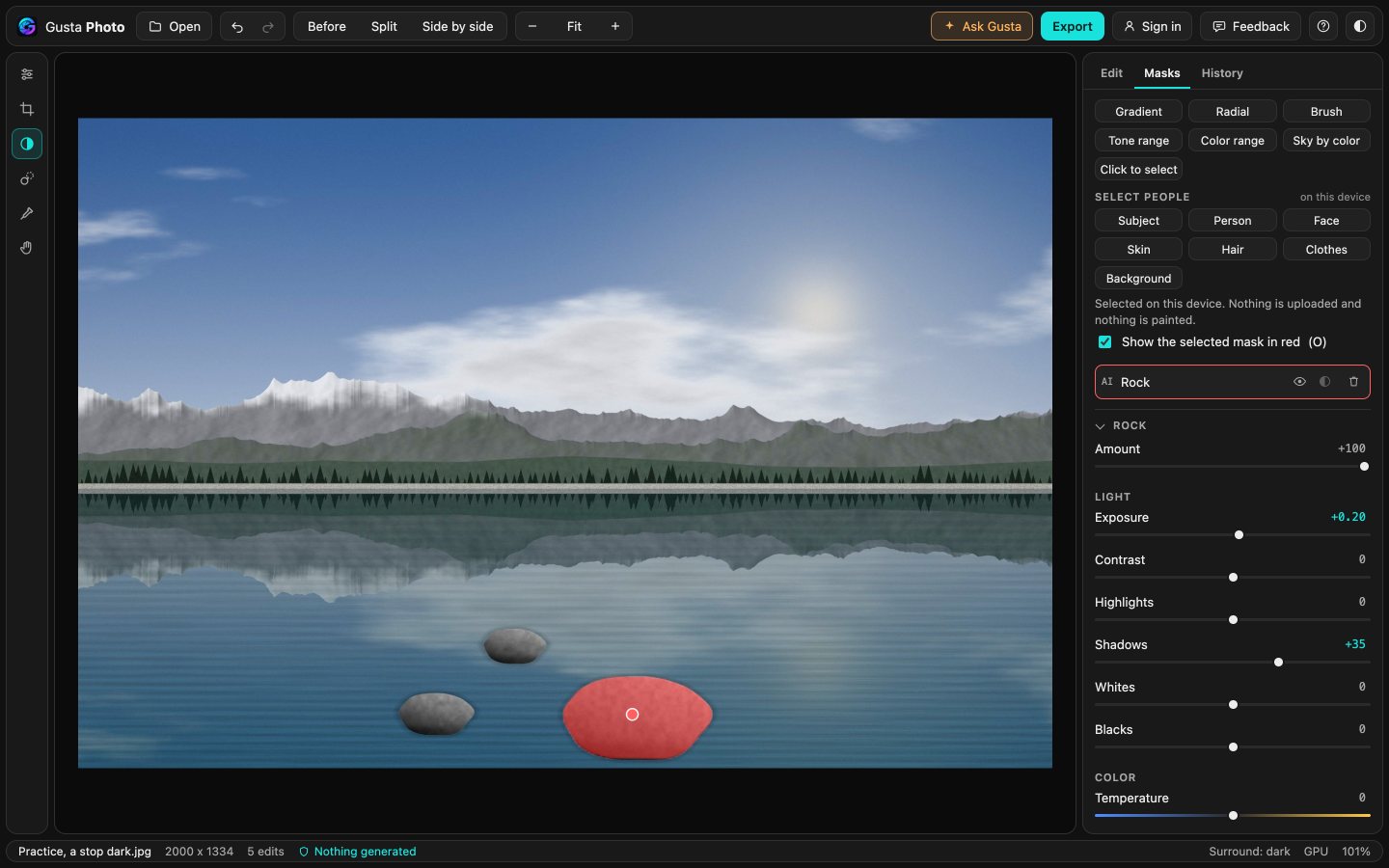
Gradient, radial, brush, tone range, color range and sky by color masks, each with fifteen sliders of its own, and a mask can add, subtract or intersect other shapes, brush strokes and AI selections to select exactly the part you mean.
Two kinds of AI selection run on your device, so the photo is not uploaded for either. Tap to select picks whatever object you tap, a rock, a boat, a cup, with Select more and Select less to correct it and Refine edges to make the edge follow the photo. Select people picks a subject, a person, a face, skin, hair, clothes or the background. Both only choose which pixels a slider adjusts. They never paint them.
Spot heal, for dust on the sensor
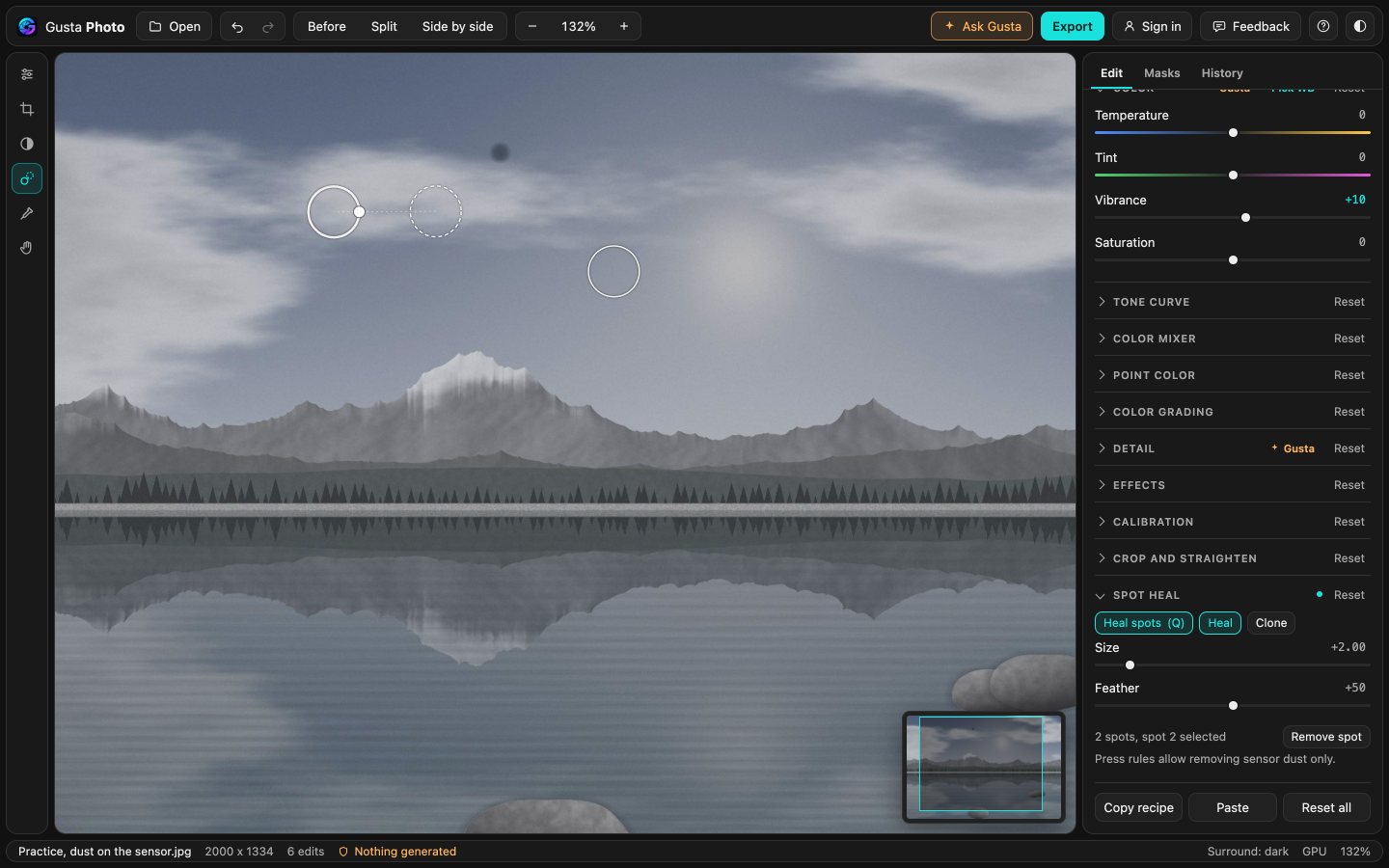
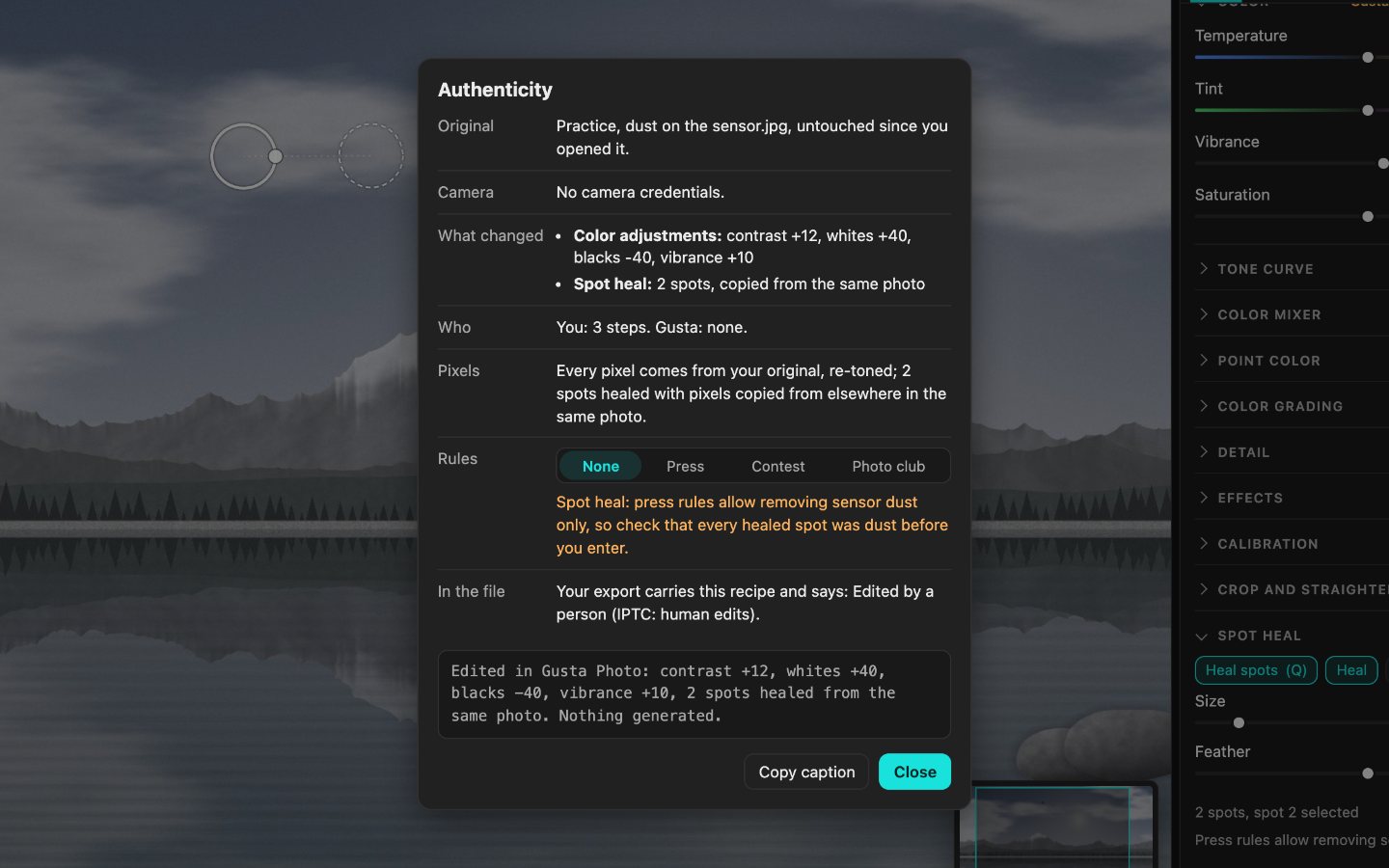
Tap a speck of dust and Spot heal fills it from a nearby clean part of the same photo, matching the light around it, or copies exactly with Clone. Drag either circle to adjust it. Nothing is generated, and nothing is hidden: the file, the Authenticity sheet and the caption all say how many spots were healed. Press contests allow removing sensor dust only, so under Press rules a heal counts as changing content and the check says so. Gusta never heals; ask it about dust and it points you here.
Gusta, the assistant that moves sliders
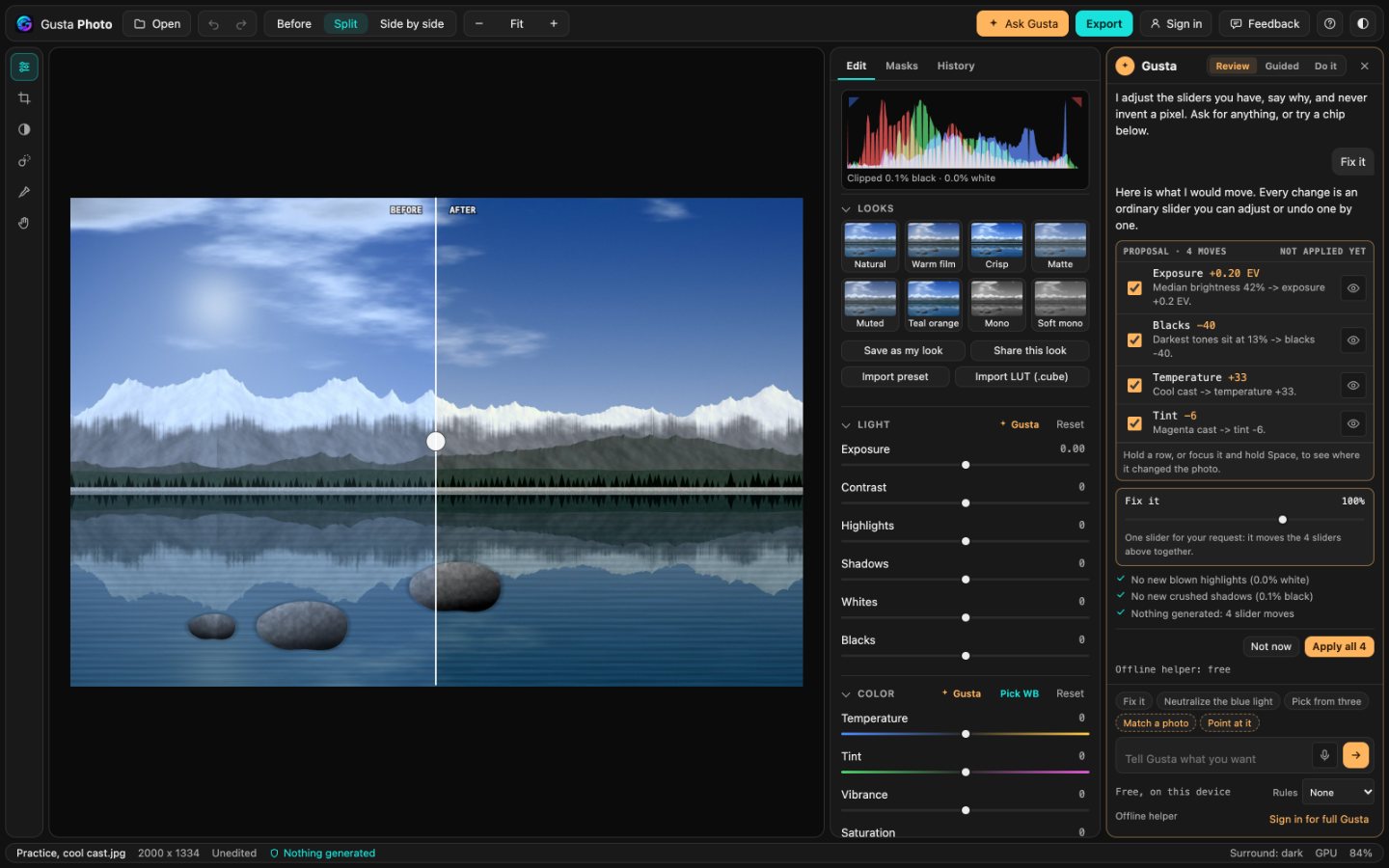
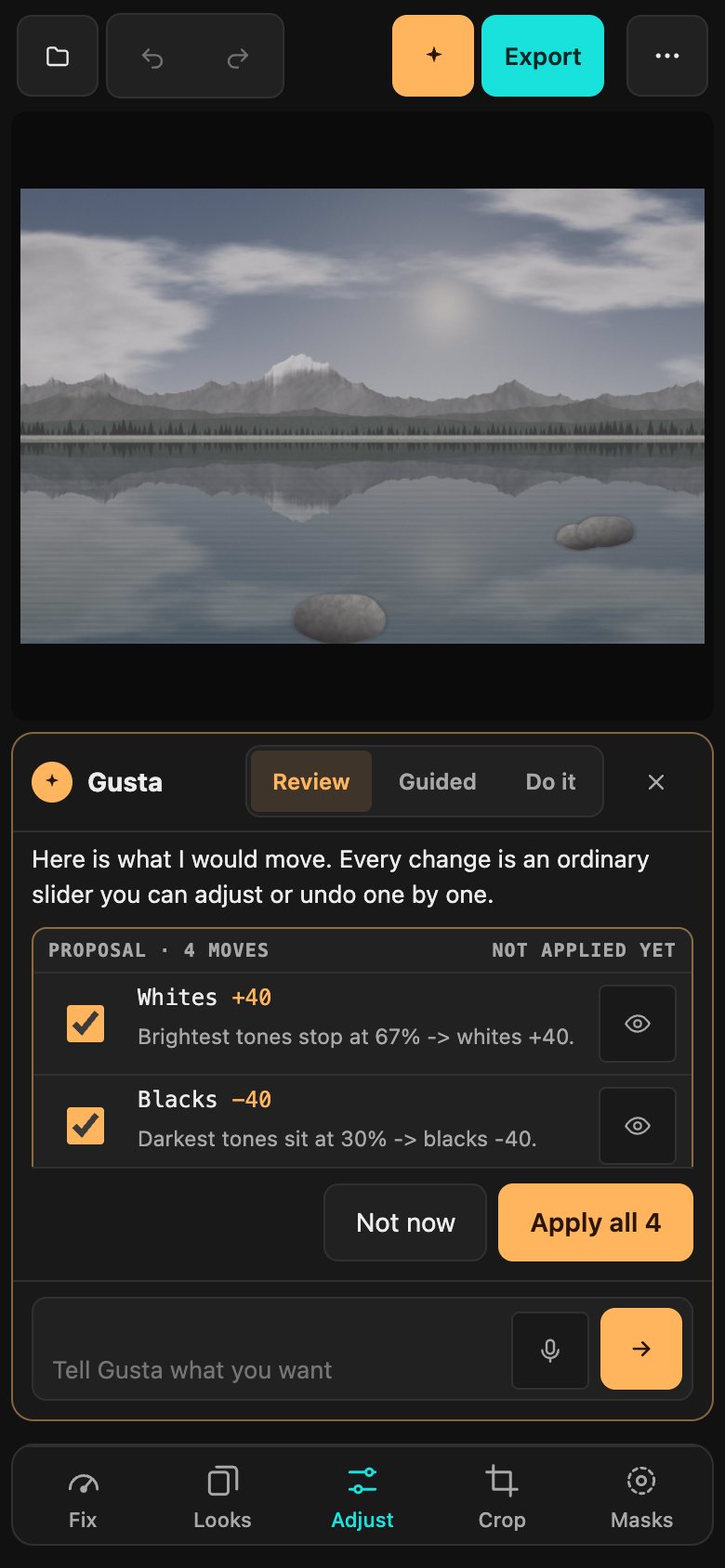
Ask in plain words, "make it warmer but keep the snow white" or "recover the sky", or tap a chip built from what was measured in your photo: Fix it, Level it, Neutralize the blue light. Hold the mic to say it instead, where your browser can turn speech into text; before the first use it tells you which service does that. Gusta answers with slider moves, each with the measurement behind it. In Review mode, the default, the run arrives as a preview: untick a row, hold its eye to see the photo without it, scale the whole run with one slider, then apply it as a single undo step. Hold a row to see where on the photo it made a change, and local moves are pinned on the photo by number. Guided mode goes one step at a time and shows you the slider; Do it applies the run and lets you undo any step.
Before a run counts as finished, it is checked on the pixels: no new blown highlights, no new crushed shadows, neutral grays stay neutral, skin keeps its hue. Entering a photo somewhere? Pick the rules it must fit, Press, Contest or Photo club, and Gusta keeps its moves inside them, with every limit measured on the recipe and the pixels. Ask it to remove, add or reshape something and it says no, and offers the closest honest alternative. Pick from three offers three directions to choose from, and Match a photo carries the look of a reference over to yours.
Without an account, a free helper version of Gusta runs on your device: quick fixes from what it measured, and it says that is what it is. Signed in, the full Gusta works through Gusta Core and spends tokens from your Gusta wallet, with the cost shown before you send; a request the helper cannot handle can wait while you sign in. To see what it is adjusting, the full Gusta gets a reduced copy of the photo, at most 768 pixels on the long side, never the original.
Looks, LUTs and presets
Eight built-in looks with an amount slider, your own saved looks, and look links you can send to someone else. Import a .cube LUT, 3D or 1D, or a Lightroom preset as an .xmp file: it becomes ordinary slider moves, and anything Gusta Photo cannot reproduce is listed rather than dropped silently. Copy one photo's recipe and paste it onto others, with a checkbox for each part that should travel.
RAW, HEIC and the formats you have
JPEG, PNG, WebP, AVIF, the HEIC photos an iPhone takes, and RAW files from most cameras: DNG, CR2, CR3, NEF, ARW, RAF, ORF and RW2. RAW files are developed in your browser with LibRaw, starting from the camera's own white balance, and HEIC is decoded with libheif. If an original carries wide color or HDR, the app detects it and says so when you export. Photo info shows what the original says about itself, camera, lens, exposure and capture date, and keeps the location hidden until you tap Show location.
Many photos, one at a time
Open a whole batch at once, or, with the app installed, open photos from your computer's Open with menu or share them from an Android phone (iOS offers neither). Home shows what you opened with a measured badge on each, such as a stop dark, a cool cast or a leaning horizon, and Fix the obvious ones applies the free fix to all of them, each step undoable. Similar shots are labeled with the sharpest marked and blurry ones badged, and Pick the sharpest flags the best one for you without deleting anything. Flag and star as you go, filter the filmstrip, and export a selection in one go.
Getting it out
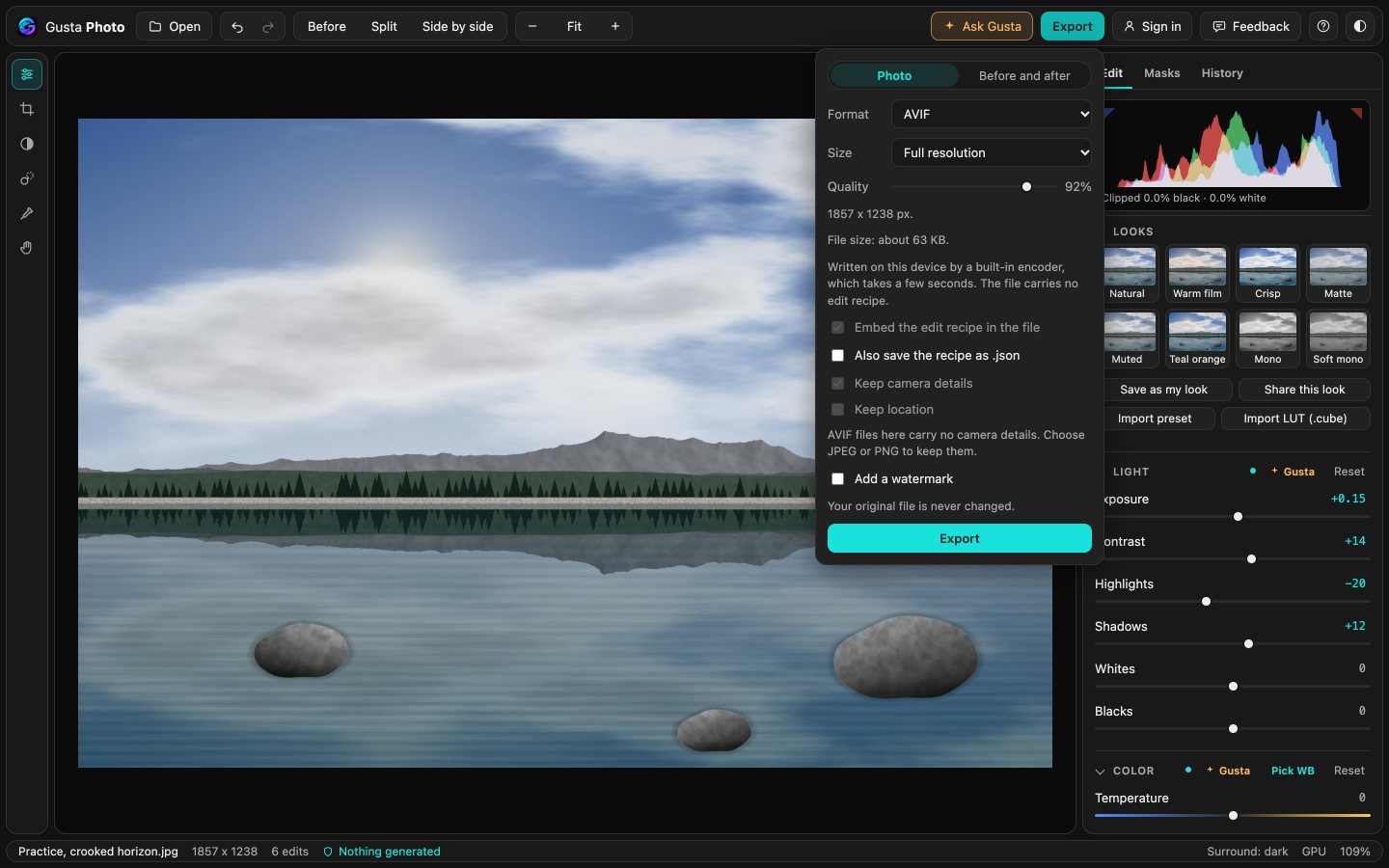
Export at full resolution or at a set size, including exact Instagram and Story sizes, either cropped to fill or fitted on a border. JPEG, PNG, WebP and AVIF in every browser: where the browser cannot write WebP or AVIF itself, a built-in encoder does it on your device. The recipe travels inside the JPEG or PNG and the camera details are kept, while WebP and AVIF carry neither, and the export panel says so. Your location is left out unless you choose to keep it. A watermark, your own text or a small mark, is there if you want one, off unless you turn it on, and the Authenticity sheet says it was added at export. A before and after image, or a six second before and after video where the browser can record one, is one option away.
Finding your way, and talking to us
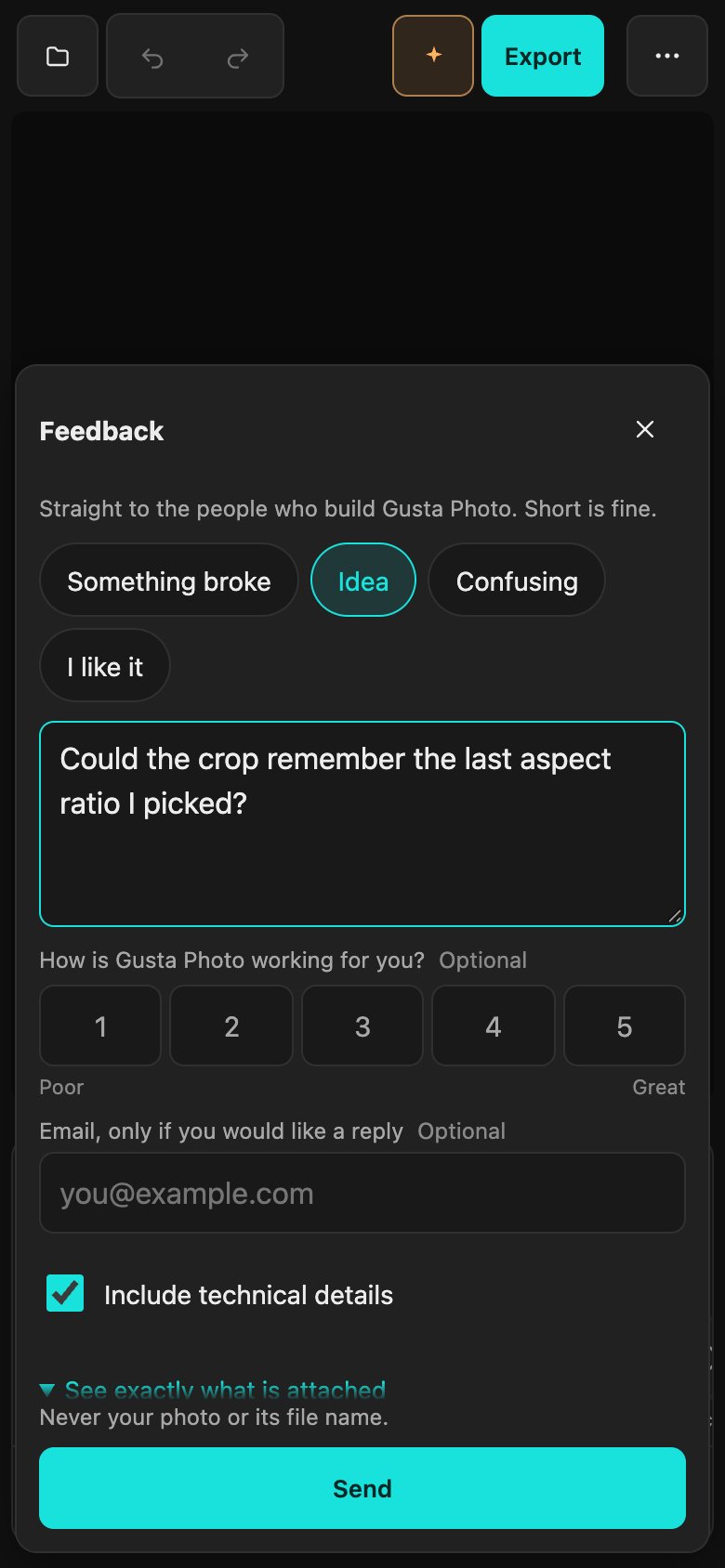
Press Cmd or Ctrl and K for the command palette: every action, tool, slider, look and history step, one search away. Feedback sits in the top bar, under More on a phone, and every error message offers Report this. Pick what kind of note it is, rate the app if you like, and see exactly what is attached before you send: the build, the device, the kind and size of photo and the last few errors, never the photo itself or its file name. Signed in, replies arrive in an Inbox in the app.
Built for the phone you took it with
On a phone the editor becomes a pocket layout. The photo keeps most of the screen and the page never scrolls. Five tabs sit within thumb reach (Fix, Looks, Adjust, Crop and Masks), every slider is a chip with a ring that shows how far it moved, and one ruler sets the slider you picked. Gusta and export open below the photo, not over it, and export goes through the share sheet so the result lands in Photos. Swipe on the photo to adjust, hold it to see the original, tap with two fingers to undo. On an iPad in landscape the dock floats as a card you can move, fold or dock back, and Apple Pencil pressure shapes the mask brush. It installs to your home screen.
What makes it different
Nothing generated, by design. No generative fill, no sky replacement, no face reshaping, no AI upscaling. Every pixel in the export comes from your original: re-toned, or, for a dust spot you heal, copied from elsewhere in the same frame. The status bar says so, "Nothing generated", and opens the Authenticity sheet: what changed, grouped; who changed it, you or Gusta; whether the photo fits the rules you picked; and a caption you can copy. JPEG and PNG exports carry the IPTC digital source type that matches what happened, edited by a person or algorithmically enhanced once Gusta has helped, and never a value that would call the photo generated. If an original carries Content Credentials, the sheet says they were detected; it never calls a photo verified.
The original is never touched. The file you open is kept exactly as it was, and your edit is a recipe applied to it on demand. Any change can be undone or reset, because nothing was ever baked in.
Your photos stay on your device. Photos you open live in your browser's storage. RAW development, AI selections, editing and export all run on your machine. The only time any of the photo leaves it is when you ask the full Gusta for help, and then it is a reduced copy that is not kept after the answer.
The AI uses the tools instead of talking about them. Gusta's answer is a set of ordinary slider moves you can read, change and undo, not a new image you have to take or leave.
Free to start. Editing and export are free, with no account and no watermark. Only the full Gusta spends tokens, and in the open beta those tokens are granted rather than sold.
Questions people ask
Is Gusta Photo free?
Editing and export are free, with no account and no watermark. Every slider, mask, look and export format costs nothing, and so does the free helper version of Gusta that runs on your device. Only the full Gusta, which needs a sign-in, spends Gusta tokens. Gustalabs is in open beta, so nothing is for sale yet and those tokens are granted free while we test.
Can I edit RAW and HEIC photos in the browser?
Yes. Gusta Photo opens RAW files from most cameras, including DNG, CR2, CR3, NEF, ARW, RAF, ORF and RW2, and the HEIC photos an iPhone takes, as well as JPEG, PNG, WebP and AVIF. RAW files are developed in your browser with LibRaw, starting from the camera's own white balance, and HEIC files are decoded with libheif. Neither is uploaded anywhere to be converted.
Does the AI generate or change pixels?
No. Gusta adjusts your photo by moving the same sliders you would, and says why for each one. It never adds, removes or reshapes anything, and masks, including the AI selections, only choose which pixels a slider affects. There is no generative fill, no sky replacement, no face reshaping and no AI upscaling, by design. The one retouch is yours to make: Spot heal removes dust by hand by copying pixels from elsewhere in the same frame, and it is disclosed in the file and in the Authenticity sheet.
Are my photos uploaded?
No. Photos you open stay in your browser's storage on your device, and developing, editing, AI selections and export all run there. The one exception is when you ask the full Gusta for help: then a reduced copy of the photo as it currently looks, at most 768 pixels on the long side, is sent with your request so the assistant can see what it is adjusting. The original is never sent, and the reduced copy is not kept after the answer. Feedback you send never includes the photo or its file name.
Do I need an account?
Not to edit or export. The editor opens and works signed out, your photos and recipes stay in your browser, and the free helper answers on your device without an account. Signing in matters for the full Gusta and for an Inbox of replies to your feedback, and it is the same Gusta account that covers the other Gustalabs apps.
Does it work on a phone or an iPad?
Yes, and the phone was designed for first. On a phone the photo keeps most of the screen, five tabs sit within thumb reach, and one ruler sets whichever slider you picked. Gusta and export open below the photo instead of over it, and export saves through the share sheet so the result lands in Photos. On an iPad in landscape the editing dock floats as a card you can move, fold or dock back, and Apple Pencil pressure shapes the mask brush. You can install it to your home screen.
Does Gusta Photo work offline?
Once it has loaded, yes: it installs as an app and keeps what it has loaded, so opening, editing and exporting photos work without a connection, and so does the on-device helper. A part you have not used yet, such as the RAW decoder or the Tap to select model, needs a connection the first time it loads. The full Gusta always needs a connection.
Can I use my Lightroom presets and LUTs?
Yes. Import a Lightroom preset as an .xmp file and it becomes ordinary slider moves you can see and change; any setting Gusta Photo cannot reproduce is listed instead of being dropped silently. A .cube LUT, 3D or 1D, imports as a look with an amount slider.
Open it and fix a photo
No photo handy? There are four practice photos waiting, each with one real problem to fix: a stop too dark, a cool cast, gray and flat, and a crooked horizon.
Open Gusta PhotoAlso from Gustalabs: Gusta GIF, screenshot to animated GIF, Gusta Draw, an online vector and SVG editor, Gusta Music, a browser music studio, and Gusta 3D, parametric CAD for 3D printing.